
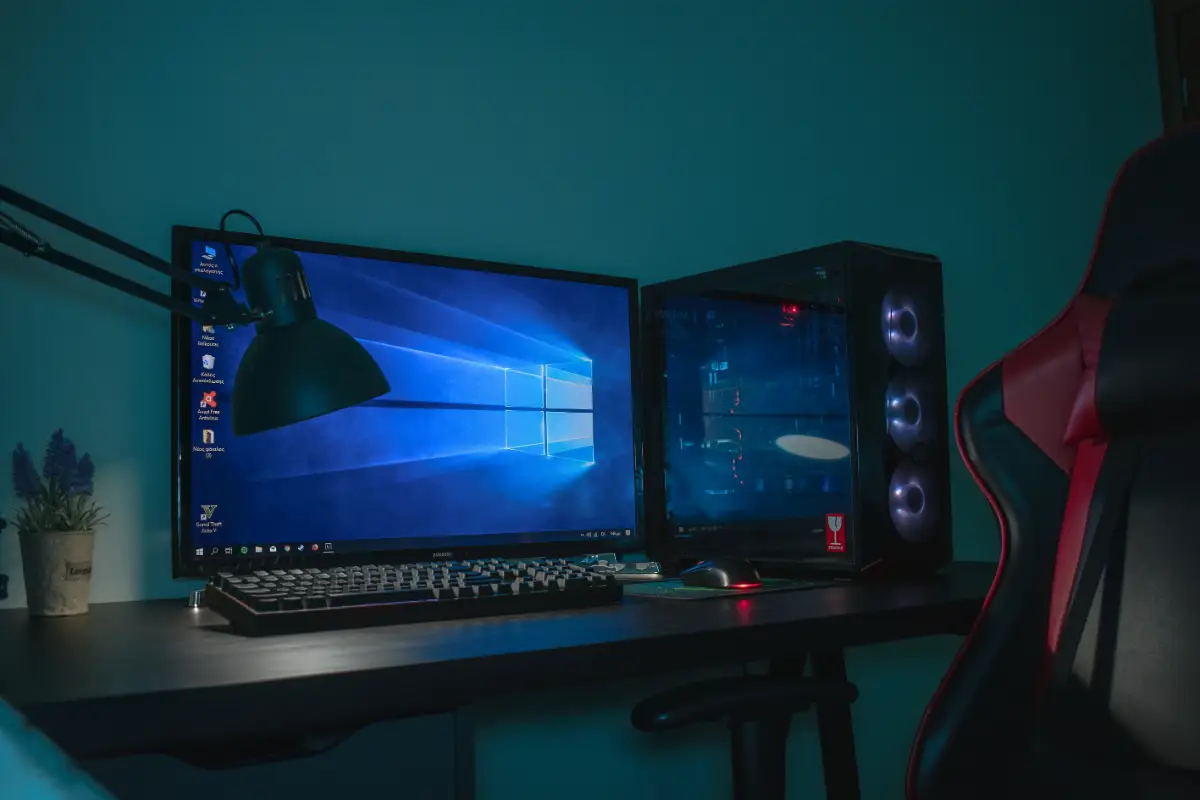
Whenever you are browsing the internet and come across a software or a program that seems interesting or useful to you, you just download it and install it on your computer. Once the purpose is served, you simply uninstall it, and boom, it’s gone. But the very next day, when you restart your laptop and log into your account, you see that the program you removed yesterday has appeared again on your desktop. It keeps slowing down your computer and dragging down its performance, which is affecting its speed. Do you know why Windows 11 keeps reinstalling removed apps? How to stop it? If you are facing a similar problem and have landed on this page, you are in the right place. Stick with me and read till the end to find out the probable causes and the immediate solutions to your problem that can get rid of these reinstalled programs from your computer.
There are a few simple steps that you can take right now to get rid of these unwanted apps from your PC. Here, you should also know that you must not remove the built-in programs that come with the Windows installation. Otherwise, you might damage your Windows installation and may need to reinstall Windows from the beginning. So, make sure that you do not interfere with these built-in features. After that, you can use CL Debloat, which comes from a trusted source, to get rid of unnecessary software from your personal computer and give it a much-needed performance boost to make it feel like a new computer. It is worth trying. Other than that, you can also use PowerShell to remove any remaining copies of software that may still be secretly stored on your computer’s hard disk and occupying its space.
Why Does Windows 11 Keep Reinstalling Removed Apps?
By using Windows, you keep a spare copy of its preinstalled apps and can stay organized and up to date. Once you know how to use Windows, its box holds spare copies of apps, and people call these provisioned apps. You can find out that Windows uses the box for every new user, so each app has two copies. Suppose one copy is on your account; you can then direct them to check the other copy in the box. Furthermore, when you remove an app, Windows removes only your copy.
By removing this, Windows allows you to keep track of the copy in the box that stays. Once a family member opens a new user account on your computer, Windows gives that new user account the app from the box, and the apps are categorized accordingly into different groups of aspects. Now, it is gone only from your account, and this is the main reason apps come back. Furthermore, a big update can use the box again, and this helps in focusing and concentrating on each app. A feature update is a big update that changes your Windows version and is essential for your computer to grow.
Which Apps Should You Never Remove?
First, learn which apps to keep; for instance, if you are on Windows 11, you can get to know the three apps to keep. You should keep three apps, and software programs scan the provided data and allow you to communicate with those apps. The apps are categorized into three groups: the Microsoft Store, App Installer and Windows Security, and software is designed to organize input of data from multiple sources. App Installer generally uses multiple modes of sign-up from a tool called winget, and winget installs apps when you type their names. Windows Security protects your computer from bad software, and all of this is run through software filtering that loads unstructured data into a structured database.
If you remove these apps, you can lose updates or safety, and this database acts as invaluable insight, based on which you can fine-tune your strategies. Now learn about bloatware, and software allows you to further track your apps and view the data so that you can figure out which types of apps work for your computer and which are less effective. Bloatware is an app that you did not choose and do not use, and software presents various modules for reaching out. Some preinstalled apps look like bloatware, but Windows may need them, and in Windows business, responding and keeping in touch with the apps is what makes you stand out among the competition. Therefore, integrated communication with Windows can increase your chances of removing only the apps that you really do not use.
How Do You Remove an App So It Stays Gone?
You must remove two copies of the app, and keeping track of these steps and information allows you to communicate effectively once it is filtered. Generally, step one is to make a restore point as a result of an appointment after appointments. Next, step two is to remove your copy, and this consumes a lot of time, which in turn limits the opportunity itself. Last, step three is to remove the copy in the box, and success these days is a product of efficiency and smart moves, whether it is a small or big business.
Step one: make a restore point. It is true that a restore point saves your computer settings. But this goes along with pressing the Windows key, such as typing restore point. The restore point process adjusts the right screens to follow.
Step two: remove your own copy. It includes removal steps like right-clicking the Windows icon in the lower left corner, clicking Installed apps, finding the app, clicking the three dots next to it, and then clicking Uninstall. With this in mind, all these steps end with restarting your computer.
Step three: remove the copy in the box. A removal step in Step three is a nice example to do only if the app still comes back. To open PowerShell as an administrator first, it offers you a right click on it and choose Run as administrator. Overcome obstacles and use PowerShell as a platform that provides a window where you type commands for your computer.
As a rule, type the command Remove-AppxPackage, and it removes the app for all users. Everyone can then type the command Remove-AppxProvisionedPackage, and it removes the copy in the box. After all, check the spelling twice, and do not copy commands from a website that you do not trust. However, sign in with a new user account and check; the app should not come back.
Give CL Debloat the following tips, and you can remove bloatware with CL Debloat. It develops a need to use CL Debloat for free personal use.
How Do You Stop Suggested Apps and Ads Coming Back?
As a result, ads and suggestions can show app names again. For example, Windows 11 is a good example of showing ads and recommendations on its screens. It is a chance to ensure that they are not removed apps. The ads and suggestions can even help with looking the same. Although you must turn them off, you can.
Make it open by opening Settings. First, choose each suggestion that you do not want and turn it off. It is a tool to turn off ads and recommendations in one place with CL Debloat. Then restart your computer and look again.
What Happens After a Windows Update?
On the other hand, ensure that you look at your apps after each big update. If your task is to remove 19 apps on one test computer, one tester at ComputingForGeeks is an example. Then, updates such as a monthly update and 18 Store app updates did not bring the apps back. That is only one computer as a whole. So it is not a promise that you should really consider.
Be attentive and look for the apps that you removed. If you have done so, remove them again with the same steps.
What If You Use a Work or School PC?
You have to ask your admin first. It is understood that an admin is the person who takes care of the computers at work or at school. For example, there is a Microsoft policy named Remove default Microsoft Store packages from the system. The policy is made for the Enterprise and Education versions of Windows 11. This means that the policy removes chosen preinstalled apps from the whole computer.
You have to ask your admin to add or remove an app from the list.
How Do You Bring a Removed App Back?
Keep these points in mind and open the Microsoft Store by clicking Install. It will help to use winget. Of course, a Store install works for your account only. However, a Store install does not put the app back in the box for new accounts.
Quick Answers
Some readers also want a fast reply before they read the full guide. For example, here are three short answers to common questions.
Q1. Is it safe to remove built-in apps?
Yes, they are safe for most apps that you do not use. However, do not remove the Microsoft Store, App Installer or Windows Security. Therefore, make a restore point first.
Q2. Will a Windows update bring them back?
Maybe. One test showed no return. However, older reports say a feature update can bring some apps back.
Q3. Do I need PowerShell?
No, not always. Try Settings first. Use PowerShell only if the app keeps coming back.
Conclusion
Windows 11 keeps reinstalling removed apps because Windows keeps a spare copy. First, make a restore point. Second, remove the installed copy and the provisioned copy. Third, keep the Store, App Installer and Windows Security. Last, check your apps after each big update.
An app may still return. Then ask your admin or remove it again. University help pages say that you can remove a program from Installed apps in Windows 11 settings, so it helps to try Installed apps first before you use stronger steps. Take it one small step at a time.

Haroon writes about Windows optimization and PC tools. He covers how to clean up Windows, remove the clutter, and make your computer feel more powerful again.