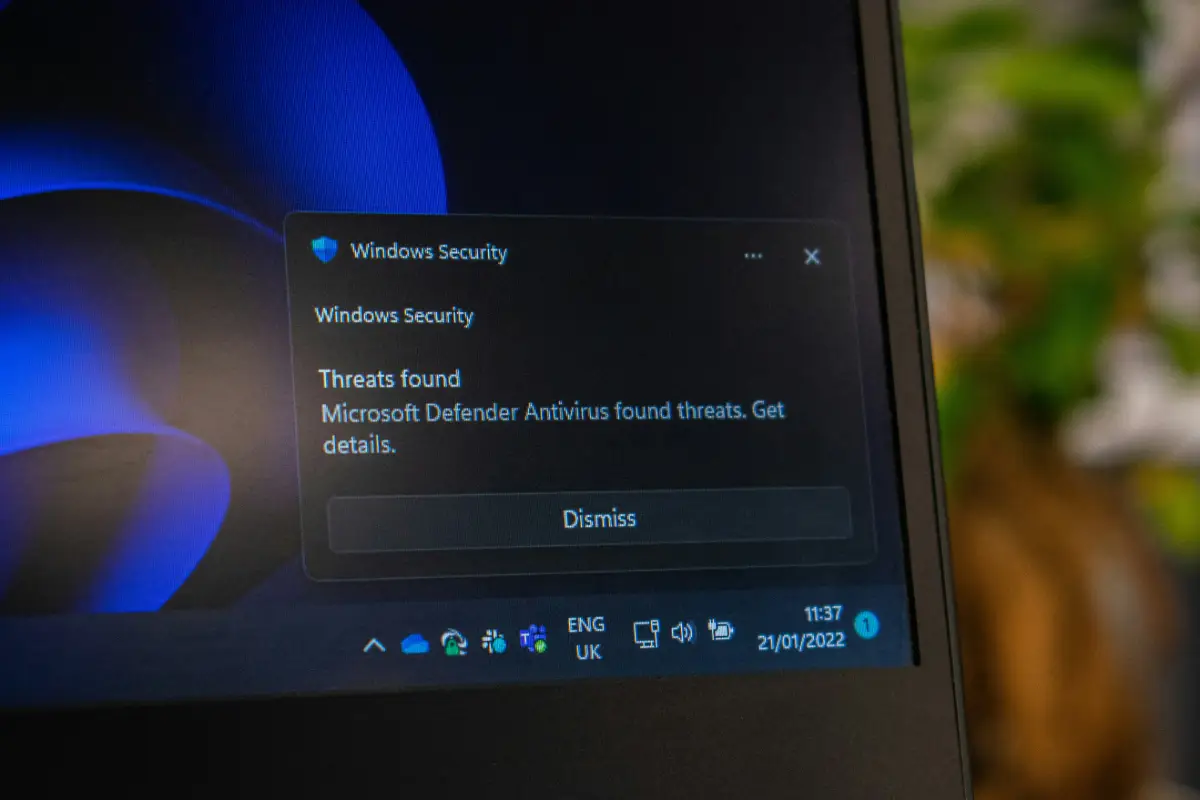
Using Windows as an operating system means getting ready to receive frequent updates. You can expect one to three small updates every week, or one major update a month. This means you receive a lot of updates from the company to keep your laptop functional and operating. Whenever you use Windows for a long time, most of us become fond of customizing it according to our personal preferences. Whenever you customize something on Windows and personalize it the way you like, a Windows 11 update suddenly arrives and disturbs your taskbar. This raises a question: Did the Windows 11 update break my taskbar customization? How to fix it?
Whenever your device receives an update from Microsoft, the company ensures that your customizations are not disturbed. However, updates can sometimes reset existing settings, remove certain customization options, or even cause conflicts with third-party customization tools. Luckily, there are methods to avoid these conflicts and get things back to normal. One such tool, CL Debloat, is available on the market. It ensures that whenever an update arrives, your customization remains undisturbed. Even if it gets disturbed, CL Debloat helps restore it to its original or preferred customization format.
Why Did a Windows 11 Update Break My Taskbar Customization?
Here are the causes: customization is essential for your taskbar to work. The update can manage huge amounts of taskbar settings.
First, an update helps sort all your settings and organize your choices back to the default with a user-friendly experience. Second, an update scans through the provided options and allows you to remove options that were there before, including small buttons. Third, a tool changes the taskbar, can stay organized, and can stop working with the new version.
Once you know how to use updates, you have an advantage in working with fixes to convert updates into opportunities to acquire new taskbar settings. An update resets your settings, and an update removes old options. Also, an update clashes with a customization tool in a taskbar update. Customization means your changes, and you made changes to how the taskbar looks and works. An update is a new version of Windows, and your computer installs the update. This is why updates can break apps and features that worked well yesterday.
What Should I Check First?
You can find out by restarting first. Your computer needs a restart, and you are looking for taskbar settings. You can then direct them to check each option one by one. Furthermore, a restart prevents any update that is only half done, and many problems go away after the restart.
Next, you look at this: the taskbar provides a way to keep track of the alignment, and you anticipate a fix date. Alignment consists of an analysis that checks whether your icons sit in the center and whether your icons sit on the left. An update is often categorized accordingly into the center, and the categorization is according to the icons, their physical location and their interests. Now, your icons have moved, the data are clear, and you can allocate the data to the only change that you need to fix.
How Do I Restart Windows Explorer?
It ensures that you open Task Manager. Then, it will help you concentrate on finding Windows Explorer. Use this to press Restart. Windows Explorer is a program organizer. The program needs multiple sources to draw your taskbar and your desktop. If it gets stuck, the taskbar will look broken in multiple ways. This means that the taskbar and your desktop show the broken look. Ensure that all of these are run through by a restart. A restart has many filters to turn loads of unstructured problems into a structured fix. This means that the fix takes a few seconds.
You can find the steps here. For example, the steps provide invaluable insight. You can use the steps to fine-tune your taskbar. We also know you are in an age of intense updates. For example, you press the Ctrl, Shift, and Esc keys at the same time. This is why this method is key to opening Task Manager. Task Manager can use the list to help. It is good that Task Manager allows you to find Windows Explorer. For example, you click Windows Explorer.
Use this to press Restart. Task Manager will do something that will help you further track Windows Explorer. This does not mean that Windows Explorer will not be in the list. Task Manager allows you to view the data. Ask yourself which type of steps work for your taskbar. They know you may figure out which type of steps are less effective. Task Manager presents various modules. Also, choose Run new task. You can do this by typing explorer.exe. Do not take too long before pressing OK.
How Do I Reset the Taskbar Settings?
You can open Settings. Then, you can go to Personalization. Also, choose Taskbar. You must ensure that you set each option back to what you want. Furthermore, you can also aim to change a setting. Some of these choices can be changed. As a rule, you may have to change one option at a time. This practice makes it easy to develop a habit. Be alert even if you look at your taskbar after each change. But at least you will see the result.
The taskbar looks right again. You make a note of your settings then. Although an update changes them again, you can fix them fast.
How Do I Restore My Custom Layout?
As a result, you can build your choices again in the settings. A customization tool is a nice idea to achieve this result. It is a chance to save and restore them. On the other hand, Windows may not offer every old option anymore. Thus, the settings alone may not be enough. Such a tool can help bring some of them back.
For example, CL Debloat is a customization tool. It is a tool where you can move the taskbar with CL Debloat. Also, it is a tool to undo your changes. If your task is to change anything, you should make a backup of your settings first. You should also make a backup of your files. However, a backup is a saved copy. You can use the backup if something goes wrong.
What If the Update Itself Is the Problem?
On the other hand, you can remove the latest update. You can find it in Windows Update history. Besides, you can also pause updates until a fix comes. Such a rollback means a return to the version before the update. You should check for a newer update first. Fixes often come a few days later. After all, you should back up your files before you roll back.
FAQ: Windows 11 Update Broke My Taskbar Customization?
Q1. Why did my taskbar move after the update?
The taskbar move is probably due to the update resetting your alignment. You should open the taskbar settings. Then, you should choose the position you want.
Q2. Why are my taskbar icons missing?
The taskbar icons are missing because Windows Explorer is stuck. Windows Explorer may have been stuck before. You should restart Windows Explorer in Task Manager today. If the icons are still missing, you should reset the taskbar settings. The icons should then return.
Q3. Will Windows give back the old taskbar options?
Windows may not give back the old taskbar options. As a result, an option may be gone. If an option is gone, you should use a customization tool. You should also choose a new layout.
Q4. Is it safe to roll back an update?
Yes, your task may be to roll back. You should back up your files first. A newer update may also fix the problem.
Conclusion
Updates often reset or remove taskbar settings when they install. A restart helps fix most problems. Also, a Windows Explorer restart helps fix most problems. Likewise, a settings reset helps fix most problems.
The taskbar may disappear. Restarting Windows Explorer from Task Manager will bring the taskbar back. You can do this without a full restart.

Haroon writes about Windows optimization and PC tools. He covers how to clean up Windows, remove the clutter, and make your computer feel more powerful again.